Your Account
The account page is where you manage your personal details, notification preferences, profile picture, password, authentication providers, and calendar export. You can access it by clicking on your name or profile picture in the side menu.
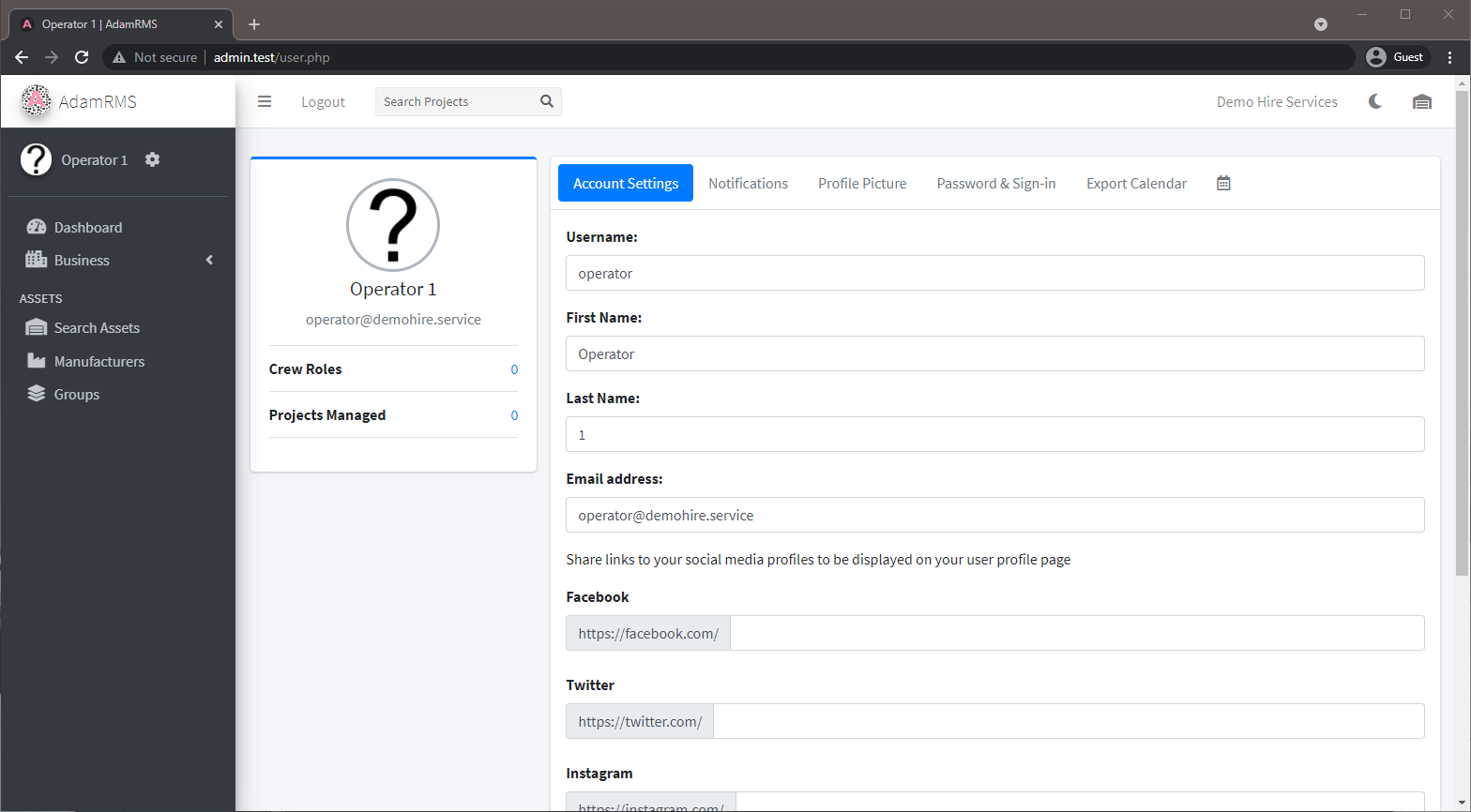 Account Settings
Account Settings
The Account Settings tab lets you update your personal information:
- Username -- your unique username on the platform
- First Name and Last Name
- Email address -- changing this may require re-verification if email verification is enabled
Social Media Links
You can optionally share links to your social media profiles, which are displayed on your user profile page visible to other members of your business:
- Snapchat
Notifications
AdamRMS sends email notifications for various events. The Notifications tab lets you control which notifications you receive.
Notifications are grouped by category:
| Category | Notifications | Can Disable? |
|---|---|---|
| Account | Password reset, Email verification, Magic link login, Added to business | No (required) |
| Crewing | Added to project crew, Removed from crew, Crew role name changed | Yes |
| Maintenance | Tagged in job, New message in job, Job status changed, Assigned to job | Yes |
| Asset Groups Watching | Asset added/removed from group, Asset assigned/removed from project | Yes |
| Business - Users | User added via signup code | Yes |
| Project | Crew vacancy application received (project managers), Application status updates (applicants) | No (required) |
Use the checkboxes to enable or disable each notification type. Click Save to apply your changes.
Some notifications cannot be disabled because they are essential for account security or workflow (e.g. password reset emails, crew vacancy application notifications).
Profile Picture
Upload a profile picture that will be displayed throughout AdamRMS next to your name. If you don't upload a picture, a generated avatar will be used.
To update your profile picture:
- Go to the Profile Picture tab.
- Upload an image using the file uploader.
- Your profile picture will be updated immediately.
Password & Sign-in
Changing Your Password
- Go to the Password & Sign-in tab.
- Enter your current password.
- Enter your new password (minimum 12 characters) and confirm it.
- Click Change Password.
We recommend using a password manager such as Bitwarden to generate and store secure passwords.
Authentication Providers
If your AdamRMS installation has Google or Microsoft OAuth configured, you can link or unlink these accounts from the Password & Sign-in tab:
- Link a Google or Microsoft account to enable one-click sign-in with that provider.
- Disconnect a linked account if you no longer want to use it for sign-in.
Your Calendar
The account page shows a personal calendar view of all your crew assignments, giving you a quick overview of your schedule.
Positions
If you have the appropriate server permissions, the Positions tab shows your positions (roles) within the AdamRMS platform, including the position title and the start/end dates. Server administrators can manage positions for other users from this tab.
Crew Roles & Projects Managed
Your profile displays:
- Crew Roles -- all active projects where you have a crew assignment, showing the project name, date, and your role.
- Projects Managed -- all active projects where you are the project manager.
These tabs are visible to other users who have permission to view your profile.
Calendar Export
You can export your AdamRMS calendar to external calendar applications so your project schedule stays in sync with your personal calendar.
Setup Instructions
- Go to the Export Calendar tab on your account page.
- Copy the calendar URL shown at the top of the tab.
- Follow the instructions for your calendar application:
Google Calendar
- Open Google Calendar.
- Click the + above My calendars and choose From URL.
- Paste the URL and click Add calendar.
- The calendar should appear within a few seconds.
Apple Calendar
- In Apple Calendar, click File > New Calendar Subscription....
- Paste the URL and click Subscribe.
- Set Auto-refresh to Every hour to keep your calendar up to date, then click OK.
Outlook
- In Outlook, click Open Calendar and choose From Internet....
- Paste the URL and click OK.
- Click Yes when prompted to add the internet calendar.
The calendar URL contains a private key unique to your account. Do not share this URL with others, as it would give them access to your schedule.
Viewing Other Users' Profiles
If you have the BUSINESS:USERS:VIEW:INDIVIDUAL_USER permission, you can view other users' profiles by navigating to their user page. You'll see their crew roles, projects managed, calendar, and (depending on permissions) their account details.
Related Features
- Getting Started -- initial account setup
- Dashboard & Navigation -- the main dashboard and navigation
- Project Crew -- how crew assignments work
- User Management -- managing users within your business (admin)