Locations
Locations in AdamRMS represent venues, warehouses, storage areas, and other physical places relevant to your business. They are used for tracking where equipment is stored and where projects take place.
LOCATIONS:VIEW
LOCATIONS:CREATE
LOCATIONS:EDIT
Viewing Locations
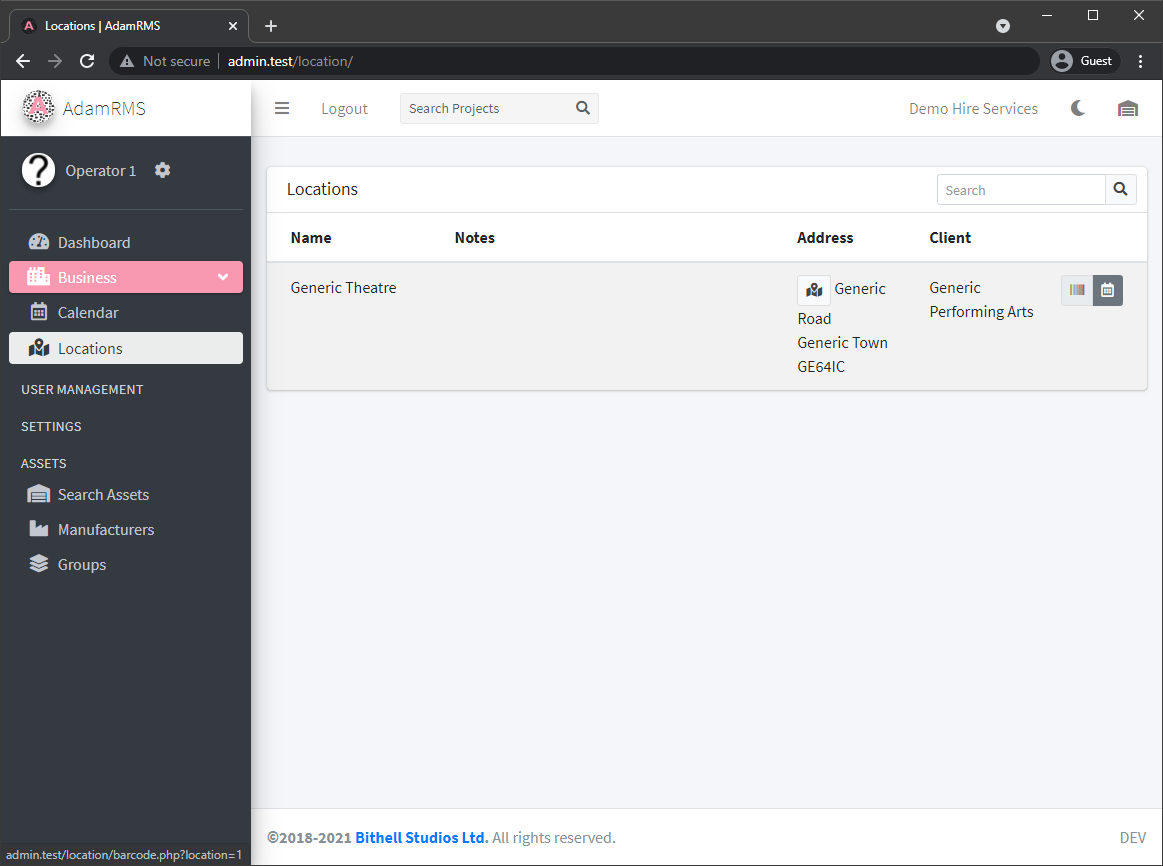 List of locations
The locations page displays your venues in a hierarchical list. The table shows the following columns:
- Name -- the location's name
- Notes -- additional information
- Address -- physical address
- Client -- the client associated with this location (if any)
- Actions -- buttons for viewing barcodes, files, calendar, editing, archiving, and deleting
Filtering
- Search -- filter locations by name, address, or notes
- Show archived -- toggle between active and archived locations
Sub-Locations
Locations can be organised hierarchically. A location can be a sub-location of another, creating a tree structure. For example:
- Main Warehouse
- Shelf A
- Shelf B
- Packing Area
Sub-locations are displayed indented beneath their parent in the location list. This hierarchy is also used when setting storage locations for individual assets, allowing you to track exactly where equipment is kept.
Creating a Location
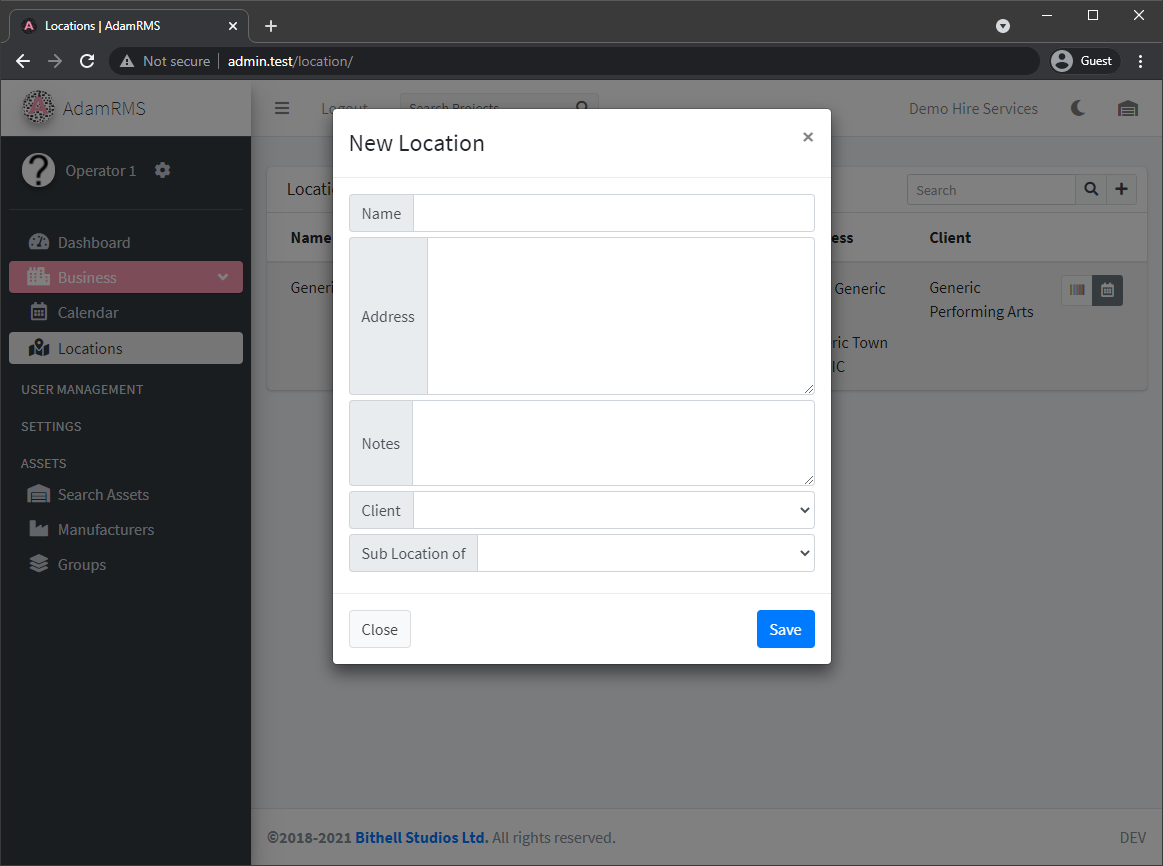 Creating a new location
- Click the + button on the locations page.
- Fill in the location details:
- Name (required)
- Address
- Client -- optionally associate the location with a client
- Notes
- Sub-location of -- optionally make this a sub-location of an existing location
- Click Save.
Editing a Location
Click the edit icon next to a location to update its details. You can change any of the fields available during creation.
Location Barcodes
Each location automatically has a barcode assigned to it. These barcodes can be used with the asset barcode scanning system to track which assets are at which locations.
When an asset's barcode is scanned at a location, AdamRMS records the asset's position, building up a history of where each asset has been.
Archiving Locations
- Archive a location to hide it from the default view without removing it. Archived locations can be restored later.
- Archiving is a soft operation -- no data is lost, and the location can be viewed by switching to the archived locations view.
Archiving or deleting a location does not affect assets currently assigned to that storage location. You should reassign assets before archiving their storage location.
Location Files
Locations can have files attached to them, such as:
- Venue plans and floor layouts
- Risk assessments
- Access instructions
- Photos
Click on a location's file icon to view and manage its attached files.
Related Features
- Asset Barcodes -- scanning assets at locations
- Clients -- locations can be linked to clients
- Projects -- projects reference locations for delivery and use