Public Sites
AdamRMS provides embeddable public widgets that allow you to share selected information from your business on external websites without requiring visitors to log in. This is useful for advertising crew vacancies on your organisation's website or social media.
Available Widgets
Currently, AdamRMS offers one public widget:
Crew Vacancies
The crew vacancies widget displays a table of open crew recruitment positions from your projects. It shows:
- Project name (including parent project, if applicable)
- Client name (optional -- can be hidden)
- Project dates (start and end)
- Role name
- Application deadline
- More Info button (shows role description, person specification, and project manager)
- Login to Apply / Login to Sign Up button (directs visitors to your AdamRMS login page)
The widget automatically filters to show only:
- Open vacancies that haven't passed their deadline
- Vacancies that still have unfilled slots
- Vacancies marked as "Show on Public Site" in the crew recruitment settings
- Vacancies not restricted to specific role groups
The widget is responsive, displaying as a table on desktop and as stacked cards on mobile devices.
Enabling Public Site Widgets
- Navigate to Business Settings > Public Site.
- Enable the Crew Vacancies widget.
- Optionally configure:
- Show client names -- whether to display the client associated with each project
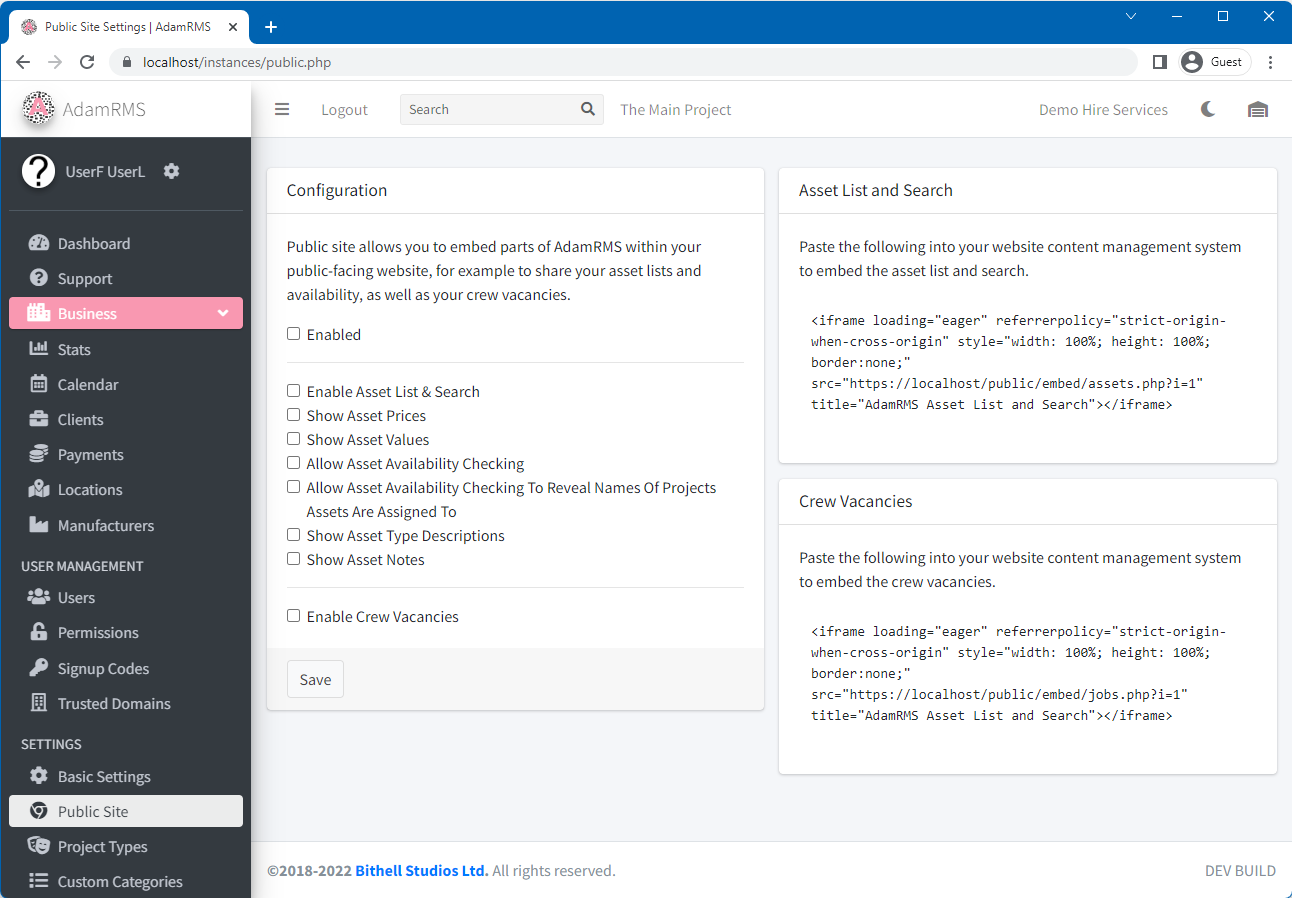 AdamRMS public site settings
BUSINESS:BUSINESS_SETTINGS:VIEW
BUSINESS:BUSINESS_SETTINGS:EDIT
Embedding on Your Website
The public widgets are available at a URL specific to your business instance. You can embed them on your website using an HTML <iframe>:
<iframe
  src="https://your-adamrms-url/public/embed/jobs.php?i=YOUR_INSTANCE_ID"
  width="100%"
  height="600"
  frameborder="0"
  title="Crew Vacancies"
></iframe>
Replace YOUR_INSTANCE_ID with your business's instance ID, which can be found in your business settings.
The public embed pages use minimal styling so they can blend into your existing website. You may want to add CSS to match your site's design.
Making Vacancies Public
For a crew vacancy to appear on the public site:
- Create a crew vacancy in a project (see Crew Recruitment).
- When setting up the vacancy, enable Show on Public Site in the visibility options.
- Ensure the vacancy is not restricted to specific role groups (group-restricted vacancies are never shown publicly).
Related Features
- Crew Recruitment -- creating and managing crew vacancies
- Business Settings -- enabling public site widgets